Hide WordPress Website From Wappalyzer
October 31, 2017
This tutorial has moved to the new WP Ghost Knowledge Base where each feature is presented in detail.
- How CMS Detectors Identify WordPress
- How to Hide WordPress from Detectors
- How to Test Correctly
- Frequently Asked Questions
- A detector still identifies WordPress after configuring WP Ghost. What is wrong?
- Can WP Ghost block Wappalyzer or WhatRuns browser extensions?
- Do I need Ghost Mode or is Safe Mode enough?
- Even if detectors still find some plugins, are the paths still protected?
- Does WP Ghost modify WordPress core files?
- Related Tutorials
Hide your WordPress site from Wappalyzer, BuiltWith, WhatCMS, and other CMS detectors using WP Ghost (formerly Hide My WP Ghost). WP Ghost removes WordPress fingerprints from your source code so detectors cannot identify your CMS. This guide covers configuration, testing, and the difference between online scanners and browser extensions.
How CMS Detectors Identify WordPress
CMS detectors look for specific patterns in your page source: /wp-content/ and /wp-includes/ paths, wp-login.php, the WordPress generator META tag, ?ver= parameters on scripts, wp- prefixed CSS class names, REST API endpoints, and common file paths like readme.html. Each pattern is a fingerprint. WP Ghost removes these fingerprints across multiple layers.
There are two types of detectors and they work differently:
| Online scanners (server-side) | Browser extensions (client-side) |
|---|---|
| Scan your site remotely like any visitor | Run inside your browser, see what your browser sees |
| Only see what your server sends to public visitors | Can detect admin assets if you are logged in |
| Can be fully defeated by WP Ghost | May detect WordPress from admin session signals |
| Examples: WhatCMS.org, wpthemedetector.com | Examples: Wappalyzer extension, WhatRuns, BuiltWith extension |
How to Hide WordPress from Detectors
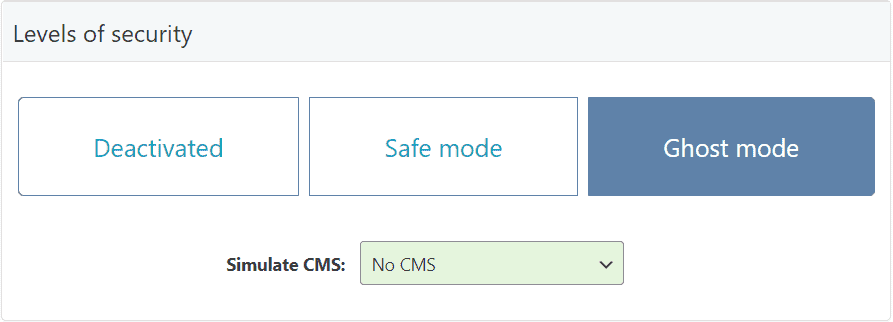
1. Activate Safe Mode or Ghost Mode
Go to WP Ghost > Change Paths > Level of Security. Select Safe Mode or Ghost Mode. Click Save. This changes all major WordPress paths automatically.
2. Enable Hide Options in Tweaks
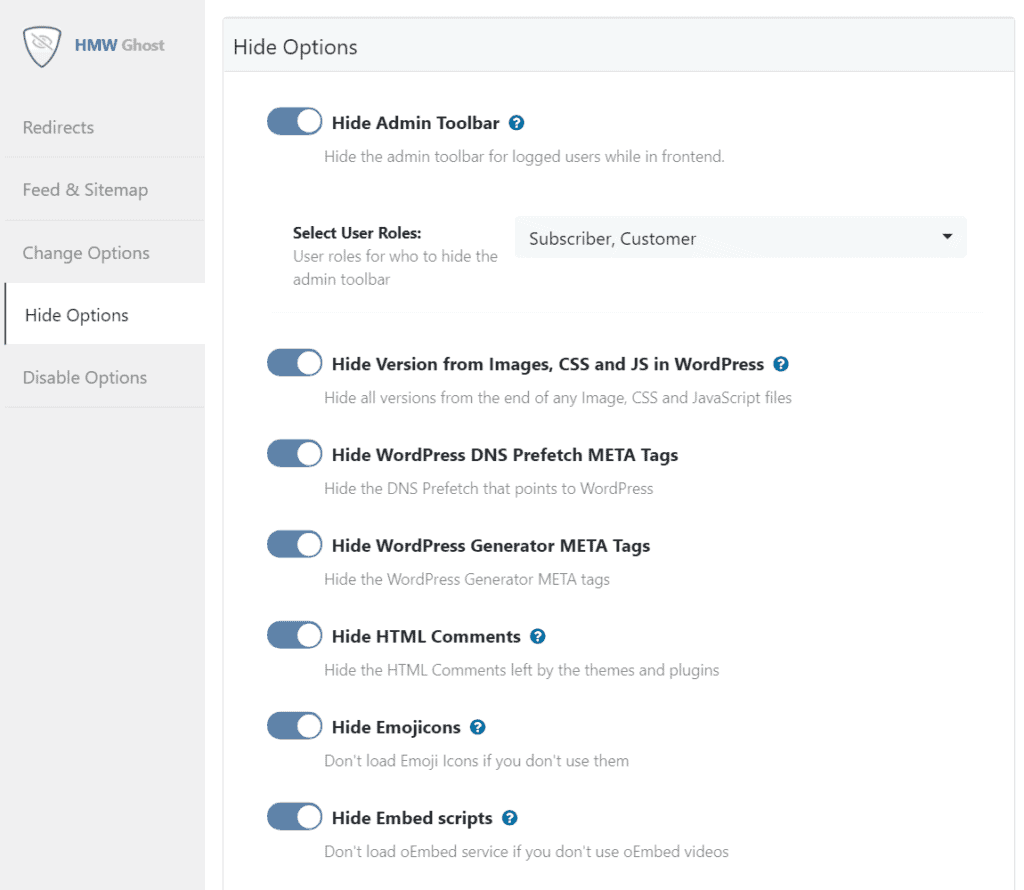
Go to WP Ghost > Tweaks > Hide Options. Enable: Hide WordPress Version (removes generator META and ?ver= parameters), Hide IDs from META Tags (removes plugin/theme names from stylesheet IDs), and any other hide options relevant to your site. Click Save.
3. Use Text Mapping for Class Names (Optional)
If detectors still identify WordPress through plugin class names (like woocommerce- or elementor- prefixes), use WP Ghost > Mapping > Text Mapping to replace those class names with custom ones. Enable Text Mapping in CSS and JS files so the replacements are consistent across HTML, CSS, and JavaScript. See the Text Mapping tutorial for detailed instructions.
4. Run a Security Check
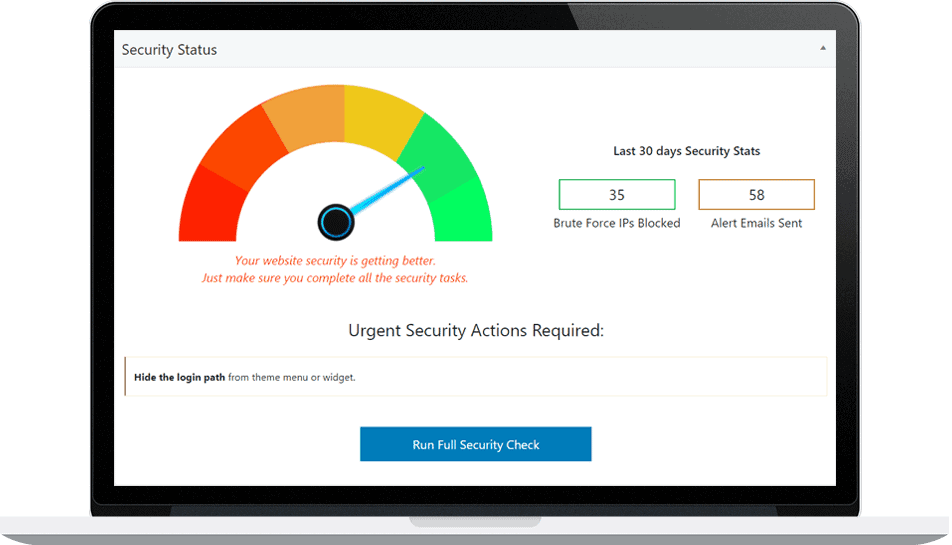
Go to WP Ghost > Security Check. Click Start Scan. Verify all path-related checks show green. Then open your site in an incognito browser, view source (Ctrl+U), and search for “wp-content” and “wp-“. If no WordPress references appear, your configuration is working.
How to Test Correctly
WP Ghost hides WordPress fingerprints for public visitors. When you are logged in as admin, WordPress exposes admin assets that detectors can pick up. Follow these rules for accurate testing:
Never test with browser extensions while logged in. Extensions like Wappalyzer and WhatRuns detect WordPress through admin-only signals and may cache that result permanently.
Test in an incognito window while logged out. This gives you the same view as a public visitor.
Use real-time online scanners for testing. These provide uncached, accurate results: wpthemedetector.com, whatwpthemeisthat.com, WhatCMS.org.
Avoid BuiltWith and Wappalyzer online for initial testing. These services cache CMS detection results for weeks or months. Even if your site is fully hidden now, they may still show WordPress from old cached data. To remove your site from BuiltWith’s cache, visit builtwith.com/removals.
Frequently Asked Questions
A detector still identifies WordPress after configuring WP Ghost. What is wrong?
Check three things. First, are you testing while logged out in an incognito browser? Second, view your source code and search for “wp-” – if old paths or class names still appear, identify the source (cached pages, hardcoded theme reference, or a Text Mapping rule you missed). Third, the detector may be using cached results from before you configured WP Ghost. Test with a real-time scanner like WhatCMS.org.
Can WP Ghost block Wappalyzer or WhatRuns browser extensions?
No. Browser extensions run on the visitor’s computer inside their browser. Your website cannot block an extension that runs locally. WP Ghost reduces what these extensions can detect by removing WordPress fingerprints from the source code. If any WordPress clue remains visible (a class name, a path fragment), the extension may still identify WordPress. Use Text Mapping to minimize detectable signals.
Do I need Ghost Mode or is Safe Mode enough?
Safe Mode covers all critical path changes and passes most online scanners. Ghost Mode adds wp-admin and admin-ajax.php path changes for the most thorough CMS hiding. If you need to pass every detector including the Wappalyzer browser extension, Ghost Mode combined with Text Mapping gives the best results.
Even if detectors still find some plugins, are the paths still protected?
Yes. Some plugins add CSS class names in the source code that reveal their identity. Even if a detector identifies a plugin name from a class, the actual file paths to that plugin are changed and hidden. Hacker bots cannot inject scripts into paths they cannot find. Path security protects even when class names are visible.
Does WP Ghost modify WordPress core files?
No. All path changes and fingerprint removal happen through URL rewrite rules, WordPress filters, and HTML output processing. No files are modified. Deactivating restores all defaults instantly.
Related Tutorials
Hide from WordPress Theme Detectors – the complete 9-step CMS hiding guide.
Text Mapping and URL Mapping – rename plugin class names and remaining URLs.
Activate Security Tweaks – all hide options for version tags, META IDs, and HTML comments.
Customize All WordPress Paths – configure every path change.
Website Security Check – verify your configuration before testing with detectors.