
Fix PDFs and Iframes Not Loading in WordPress – X-Frame-Options Guide
January 15, 2024
This tutorial has moved to the new WP Ghost Knowledge Base where each feature is presented in detail.
Quick summary: If PDFs or iframes stopped loading after you activated WP Ghost, the X-Frame-Options security header is blocking cross-origin content. You can fix this by adjusting the header value or by using Content-Security-Policy frame-ancestors instead.
Why Security Headers Can Block Iframes and PDFs
WP Ghost adds security headers to every HTTP response from your server. One of those headers is X-Frame-Options, which protects your site from clickjacking attacks. Clickjacking is when an attacker loads your page inside an invisible iframe on their site and tricks visitors into clicking on it.
The problem? That same header also controls whether your own pages can embed external content in iframes. When X-Frame-Options is set to SAMEORIGIN, browsers only allow iframes that load content from your own domain. Anything hosted on a different domain gets blocked.
This affects two common scenarios: embedding PDFs from external services (Google Drive, Dropbox, third-party document hosts) and loading iframes from other domains (payment forms, booking widgets, video embeds, maps).
How X-Frame-Options Works
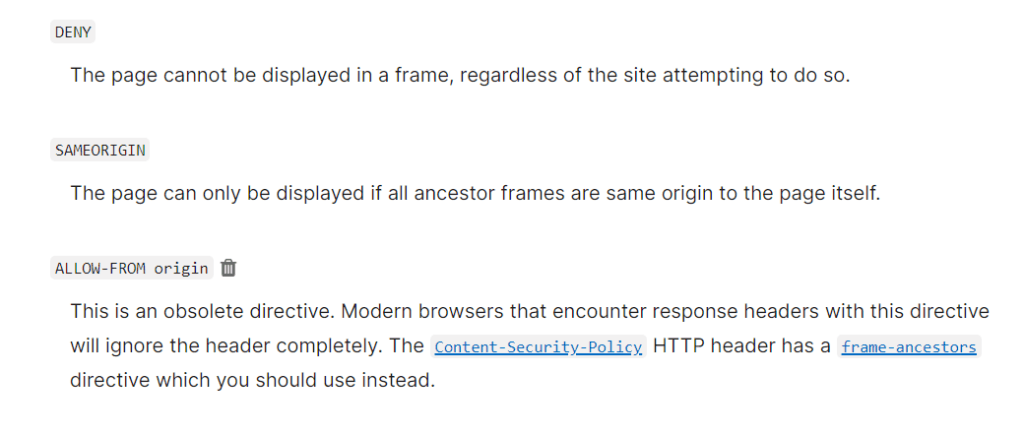
X-Frame-Options tells browsers whether your page can appear inside a frame element on another site. It has two standard values:
DENY blocks all framing entirely. No site, not even your own, can load your pages in an iframe. This is the most restrictive setting.
SAMEORIGIN allows framing only from your own domain. Your site can iframe its own pages, but external domains cannot frame your content. This is the default WP Ghost setting and works well for most WordPress sites.
The confusion usually comes from a misunderstanding of direction. X-Frame-Options controls whether your pages can be framed by others. But when browsers enforce this header, they also check iframes you embed that point to external sources. If the external source sends its own restrictive X-Frame-Options header, the iframe fails to load on your page too.

What Breaks and What Does Not
Here is a quick reference to help you identify whether your setup is affected.
| Scenario | X-Frame-Options: SAMEORIGIN | Result |
|---|---|---|
| Local PDF embedded in iframe (same domain) | Allowed | Loads normally |
| External PDF from Google Drive or Dropbox | Blocked by browser | Iframe shows blank or error |
| YouTube or Vimeo video embed | Usually works | These services send permissive headers |
| Third-party booking or payment iframe | Depends on the service | Check their X-Frame-Options header |
| Page builder live preview (same domain) | Allowed | Loads normally |
| Google Maps embed | Usually works | Google sends permissive headers |
The key takeaway: if both your site and the embedded content are on the same domain, SAMEORIGIN allows it. If the content comes from a different domain, the browser may block it depending on the headers that external server sends back.
The PDF Loading Problem
PDFs embedded in iframes are a common case. Many WordPress sites use plugins or shortcodes to display PDFs directly on a page. When those PDFs are hosted on your own server, they load fine under SAMEORIGIN.
The problem shows up when the PDF is hosted externally. For example, a Google Drive shared link or a Dropbox file embed. The browser tries to load the external URL in the iframe, checks the X-Frame-Options header from that external server, and blocks it if the policy does not allow cross-origin framing.
How to Fix It
Option 1: Use Content-Security-Policy frame-ancestors Instead
The modern replacement for X-Frame-Options is the frame-ancestors directive inside Content-Security-Policy. It gives you more control because you can specify exactly which domains are allowed to frame your content.
1. Go to WP Ghost > Firewall > Header Security.
2. Set X-Frame-Options to disabled (or leave it on SAMEORIGIN for backward compatibility).
3. In the Content Security Policy field, add a frame-ancestors directive. For example: frame-ancestors 'self' https://docs.google.com https://drive.google.com;
4. Click Save.
This tells browsers to allow your pages to be framed by your own domain and the specified external domains. It is more flexible than X-Frame-Options and is supported by all modern browsers.
Option 2: Host the Content Locally
The simplest fix is to upload the PDF or content to your own WordPress Media Library. When both the page and the embedded file live on the same domain, SAMEORIGIN allows it without any extra configuration.
1. Go to Media > Add New in your WordPress dashboard.
2. Upload the PDF file.
3. Use the local URL (your own domain) in the iframe embed instead of the external link.
This approach keeps your security headers fully intact while solving the loading issue.
Option 3: Disable X-Frame-Options for Specific Cases
If you only need iframes on certain pages and want maximum security everywhere else, you can disable security headers on specific pages using WP Ghost’s exception system.
1. Go to WP Ghost > Firewall > Header Security.
2. Keep X-Frame-Options set to SAMEORIGIN for general protection.
3. Use the Disable WP Ghost on Specific Pages feature to exclude the pages where you need external iframes.
This way your entire site stays protected except for the specific pages that need external embeds.
How to Check Which Header Is Causing the Problem
Before changing any settings, confirm that X-Frame-Options is actually the cause. Open your browser’s Developer Tools (press F12), go to the Console tab, and load the page with the broken iframe. You will see an error message like:
Refused to display 'https://example.com/file.pdf' in a frame because it set 'X-Frame-Options' to 'sameorigin'.
If you see this error, X-Frame-Options is the cause. If the error mentions Content-Security-Policy instead, check the frame-src or frame-ancestors directive in your CSP configuration.
Frequently Asked Questions
Should I just disable X-Frame-Options entirely?
No. Disabling it removes your clickjacking protection completely. Use Content-Security-Policy frame-ancestors instead. It gives you the same protection with more flexibility to allow specific domains.
Why do YouTube and Google Maps embeds still work?
YouTube and Google Maps send their own permissive X-Frame-Options headers. They explicitly allow other sites to embed their content. The issue only appears when the external service sends a restrictive header or when your own X-Frame-Options header blocks the embedding direction.
Does this problem only happen in Ghost Mode?
No. It happens whenever security headers are enabled, regardless of the security level. Ghost Mode enables security headers by default, which is why users notice it more in that mode. But if you manually enable headers in Safe Mode or any other level, the same rules apply.
Will changing X-Frame-Options affect my SEO?
No. Search engines do not use X-Frame-Options for ranking. Your pages, sitemaps, and canonical URLs are completely unaffected by this header. It only controls browser iframe behavior.
My page builder preview is broken. Is this the same issue?
Yes, it can be. Some page builders like Elementor, Divi, and Beaver Builder use iframes for live previews. If X-Frame-Options is set to DENY, the preview will break. Set it to SAMEORIGIN to fix it, since the preview loads from your own domain.
Does WP Ghost modify WordPress core files?
No. WP Ghost adds security headers through server configuration files and PHP filters. No core files are touched. Disabling the header option removes it instantly.
Related Tutorials
For a deeper understanding of security headers and how they protect your site, check these tutorials:
Header Security – Complete guide to all seven security headers WP Ghost adds, including setup and testing.
Content Security Policy (CSP) – Deep dive into CSP configuration with five ready-to-use examples for WordPress.
Disable WP Ghost on Specific Pages – How to exclude individual pages from WP Ghost’s security features.
Activate Security Tweaks – Overview of all security hardening options available in WP Ghost.
Preset Security Options – One-click security configurations including header presets.