WP Ghost CMS Simulator – Make WordPress Look Like Drupal or Joomla
This tutorial has moved to the new WP Ghost Knowledge Base where each feature is presented in detail.
Make CMS scanners think your WordPress site runs on Drupal or Joomla using WP Ghost’s (formerly Hide My WP Ghost) CMS Simulator. Instead of just hiding WordPress signals, the CMS Simulator actively injects fake Drupal or Joomla fingerprints into your source code. Scanners do not just fail to detect WordPress. They confidently identify the wrong CMS.
You have changed your paths, hidden your files, and blocked default endpoints. But what if scanners are still trying to figure out your CMS? The CMS Simulator goes one step further. WP Ghost’s path-changing features remove WordPress signals. The CMS Simulator replaces them with signals from a completely different CMS. Tools like WhatCMS.org, BuiltWith, and Wappalyzer report “Drupal” or “Joomla” with confidence.
What Is the CMS Simulator?
The CMS Simulator is a WP Ghost feature that adds fake Drupal or Joomla signatures to your WordPress site’s HTML source. When theme detectors and CMS scanners analyze your site, they find evidence pointing to Drupal or Joomla instead of WordPress, even though WordPress is running underneath.
Think of it as a decoy layer. Remove the real WordPress signals first, then inject fake ones. That is the most effective misdirection possible.
Why Simulating a Different CMS Matters
| Without CMS Simulator | With CMS Simulator active |
|---|---|
| Scanners may report “unknown CMS” | Scanners confidently identify Drupal or Joomla |
| WordPress bots still probe your site | WordPress bots skip your site (wrong CMS) |
| Persistent attackers investigate further | Attackers waste time looking for Drupal/Joomla vulnerabilities |
| Competitors can identify your CMS | Your WordPress setup is completely invisible |
The CMS Simulator breaks the automated attack chain at the CMS identification step. Bots identify your CMS first, then load the appropriate exploit toolkit. WordPress bots carry WordPress exploits. If a WordPress bot sees Drupal signatures, it skips your site entirely because its exploits will not work on a “Drupal” site. The attack chain ends before it starts.
This feature is most effective as the final layer. Remove all real WordPress signals first (change paths, hide common files, strip version tags), then inject the fake ones.
How to Simulate Drupal or Joomla with WP Ghost
Three steps. No code required.
Go to WP Ghost > Tweaks > Change Options. Under CMS Simulator, select a version of Drupal or Joomla from the dropdown. Click Save.
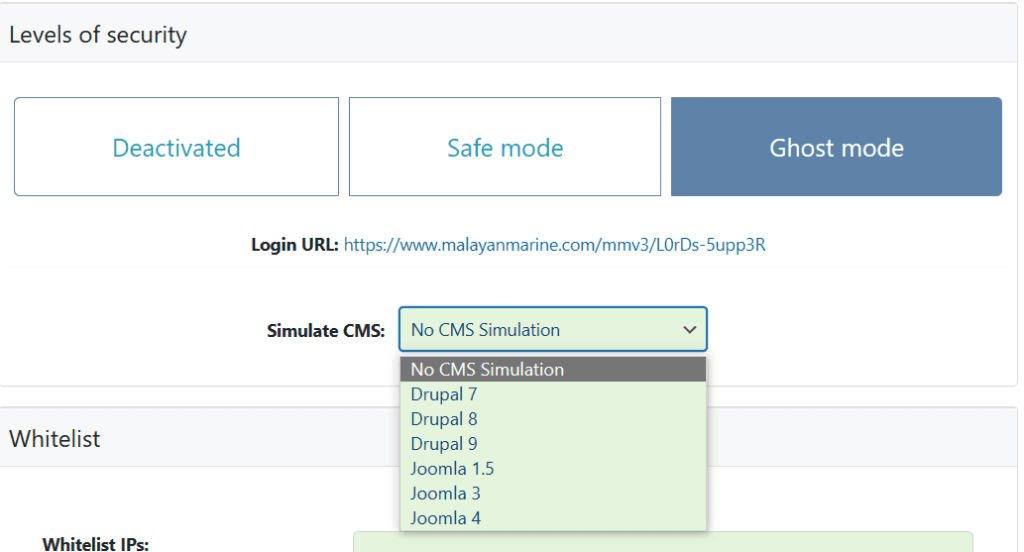
WP Ghost immediately starts injecting the selected CMS fingerprints into your site’s HTML source. No other configuration needed.
How to Verify the Simulation Is Working
After enabling the CMS Simulator, test it to confirm scanners are reading the fake signals. Visit a CMS detection tool like WhatCMS.org or BuiltWith.com. Enter your site URL and run the scan. Instead of “WordPress,” the tool should identify your site as Drupal or Joomla.
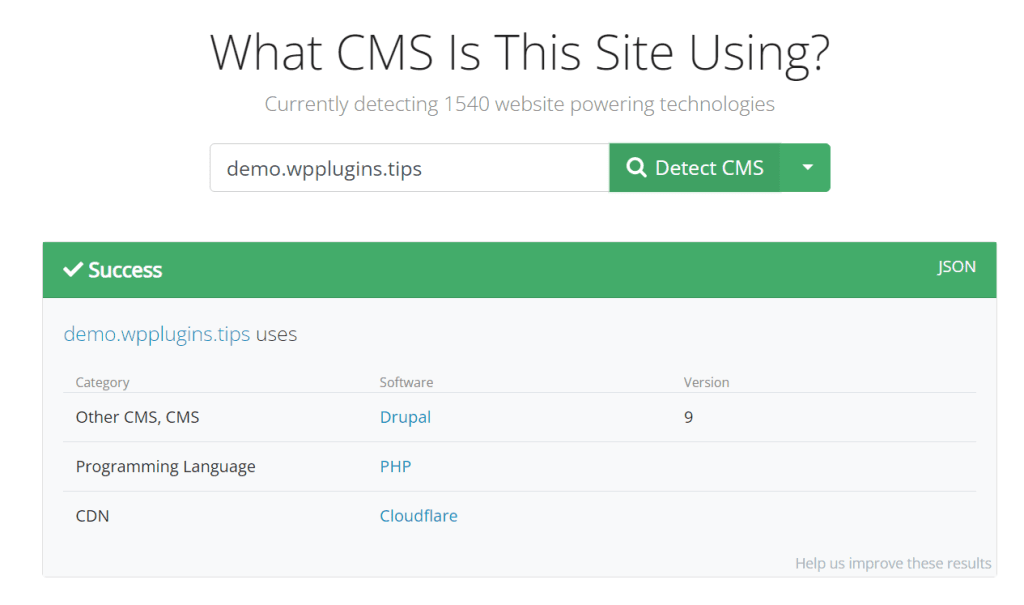
If the detector still identifies WordPress, you likely still have WordPress signals leaking elsewhere. Check that you have changed wp-content, changed wp-includes, hidden the WordPress version, and hidden common paths and files. The CMS Simulator adds fake signals, but real WordPress signals need to be removed first for the deception to be complete.
Frequently Asked Questions
Does simulating Drupal or Joomla affect how my site works?
Not at all. The CMS Simulator only adds fake meta tags and signatures to your HTML source. It does not change any functionality, layout, design, or performance. Your WordPress site continues running exactly as before.
Should I choose Drupal or Joomla?
Either works. The choice does not significantly affect security. Drupal is generally considered more “enterprise” which may make your site look less like a typical WordPress blog. But both options achieve the same result: sending scanners down the wrong path.
Can I use the CMS Simulator without changing other paths?
You can, but it will not be very effective. If your page source still contains /wp-content/, /wp-includes/, and /wp-admin/ references, scanners will detect WordPress regardless of the Drupal or Joomla signals. The CMS Simulator is designed as the final layer. Remove the real signals first, then inject the fake ones. Use it alongside Ghost Mode for best results.
Will this affect my SEO?
No. Search engines do not rank sites based on which CMS they use. The fake signals are in meta tags and HTML attributes that Google ignores for ranking purposes. Your content, sitemaps, and canonical URLs remain unchanged.
Does WP Ghost modify any core files for the simulation?
No. WP Ghost never modifies any files. The CMS Simulator injects signatures through WordPress filters at runtime. Nothing is written to disk. Deactivating WP Ghost or disabling the CMS Simulator removes all fake signals instantly.
Related Tutorials
Build complete CMS invisibility:
Hide from WordPress Theme Detectors – the complete guide to defeating CMS scanning tools.
Customize All WordPress Paths – remove all default WordPress path fingerprints.
Activate Security Tweaks – hide version tags, generator META, DNS prefetch, and HTML comments.
URL Mapping and Text Mapping – change class names and remaining URLs in source code.
Website Security Check – verify your site passes all detection checks.