
Install WP Ghost Premium – Download, Activate License, and Set Up Ghost Mode
September 9, 2018
This tutorial has moved to the new WP Ghost Knowledge Base where each feature is presented in detail.
Install and activate WP Ghost Premium (formerly Hide My WP Ghost) from your WP Ghost Dashboard account. Premium adds Ghost Mode, full Security Threats Log, User Events Log, country blocking, file extension hiding, and priority support on top of the 115+ free features. This guide covers downloading, installing, activating your license, and running your first security check.
Download WP Ghost Premium
Log in to your WP Ghost Dashboard account and download the Premium plugin zip file from your orders page.
Upgrading from the free version? Deactivate the free version first, then install and activate Premium. Your existing settings are preserved in the database.
Install and Activate
Go to Plugins > Add New > Upload Plugin. Upload the hide-my-wp.zip file. Click Activate Plugin.

Activate Your Premium License
After activation, WP Ghost shows an activation panel. Copy the Activation Token from your WP Ghost Dashboard account (orders page). Paste it into the activation field. Click Activate.
This connects your site to the WP Ghost Dashboard for cloud monitoring, security reports, and Premium feature access.
Select a Security Level
Go to WP Ghost > Change Paths > Level of Security. Premium unlocks Ghost Mode, the highest security level:
| Level | What it does | Best for |
|---|---|---|
| Safe Mode | Changes login, wp-content, wp-includes, plugins, themes, author, comments, and API paths | Most WordPress sites, WooCommerce |
| Ghost Mode (Premium) | Everything in Safe Mode plus wp-admin path, admin-ajax.php path, auto-enabled firewall and security headers | Maximum path security, passing theme detectors |

Select your level and click Save. WP Ghost generates predefined custom paths automatically. Customize individual paths or keep the defaults.
The settings are organized into sections: Admin Security, Login Security, Ajax Security, User Security, WP Core Security, Plugins Security, Theme Security, API Security, and Firewall & Headers Security.
Server Configuration (If Required)
If WP Ghost cannot write rewrite rules automatically, it displays the rules for you to add manually. Follow the on-screen instructions for your server type and click Okay, I set it up.
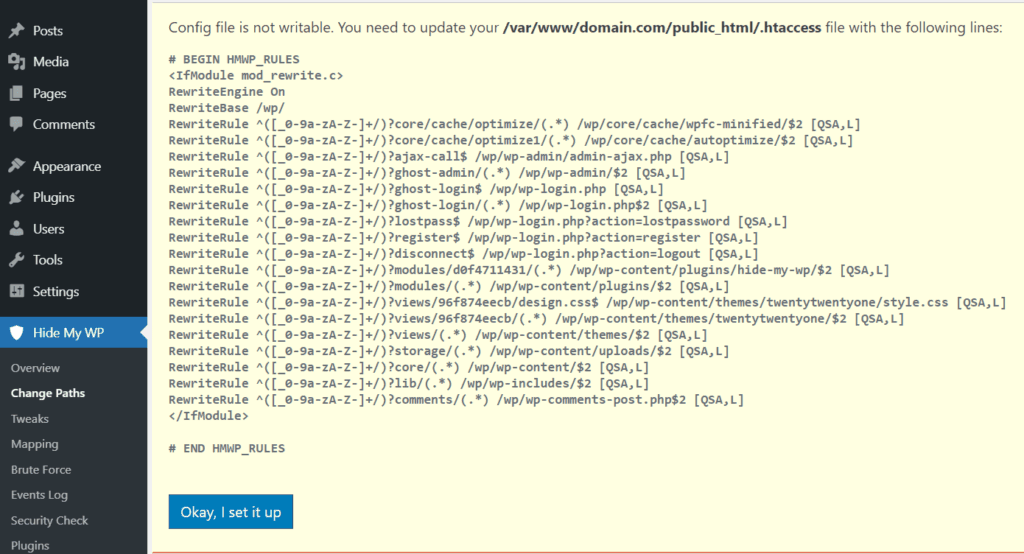
For Nginx: add the include line to your nginx.conf and restart with sudo nginx -s reload. This is a one-time setup. See the Nginx setup guide.
For Apache: ensure AllowOverride All is set for your directory. See the AllowOverride guide.
Run a Security Check
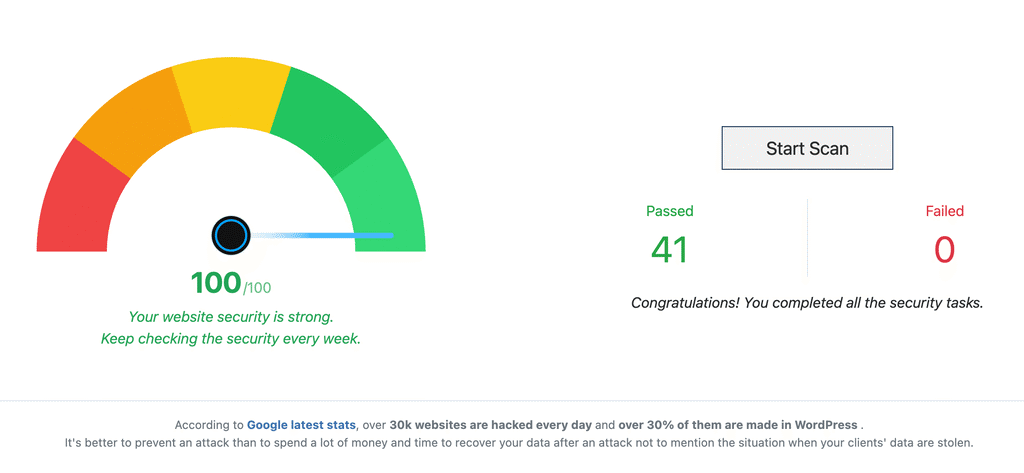
After saving, go to WP Ghost > Security Check. Click Start Scan. The scanner verifies all paths are changed and flags any remaining issues. Click Fix It on any flagged item to resolve it automatically.
Clear all caches (browser, caching plugin, CDN) and verify in a private browser by viewing source and searching for “wp-content”.
Frequently Asked Questions
Can I upgrade from the free version without losing settings?
Yes. Deactivate the free version, install Premium, and enter your license token. All existing path settings, firewall configuration, and brute force rules are preserved in the database.
Where do I find my activation token?
Log in to your WP Ghost Dashboard account and go to the orders page. The activation token is displayed next to your purchase.
What does Premium add over the free version?
Ghost Mode (maximum path security), full User Events Log, full Security Threats Log, country blocking, path-based geo blocking, file extension hiding (.php, .css, .js, .json, etc.), file permission fixes, database prefix changes, SALT regeneration, vulnerability management, and priority support. See the Free vs Premium comparison.
What if I get locked out after activating Ghost Mode?
Use the Safe URL shown at the top of the WP Ghost settings page. If you did not save it, rename the plugin folder via FTP (wp-content/plugins/hide-my-wp/ to hide-my-wp-disabled/). See the Emergency Disable guide.
Does this work with WooCommerce?
Yes. WP Ghost Premium is fully compatible with WooCommerce. Ghost Mode works with cart, checkout, product pages, and customer accounts. Safe Mode is recommended if Ghost Mode causes any compatibility issues with WooCommerce-specific plugins.
Does WP Ghost modify WordPress core files?
No. All path changes use server rewrite rules and WordPress hooks. No files are modified. Deactivating restores all defaults instantly.
Related Tutorials
Customize All WordPress Paths – configure every path after installation.
Safe Mode vs Ghost Mode – detailed comparison of security levels.
Free vs Premium – full feature comparison.
Website Security Check – verify your configuration after setup.
Emergency Disable Guide – recover access if paths cause issues.