
Advanced WP Security
This tutorial has moved to the new WP Ghost Knowledge Base where each feature is presented in detail.
Configure WP Ghost’s (formerly Hide My WP Ghost) advanced settings for rollback recovery, server compatibility, plugin loading order, and rewrite rule management. These settings ensure WP Ghost works correctly with your specific hosting environment.
WP Ghost is compatible with most plugins, themes, and hosting environments out of the box. But some server configurations, caching plugins, or theme login customizations need extra tuning to work perfectly with custom paths and rewrite rules.
The WP Ghost > Advanced panel contains two sections: Rollback Settings for recovery and safety, and Compatibility for server and plugin integration. This tutorial covers every option in both sections.
Rollback Settings
Rollback Settings are WP Ghost’s built-in safety net. They ensure you can always reach your admin dashboard and restore default settings, even if custom paths, firewall rules, or other security changes break something.
Custom Safe URL Parameter
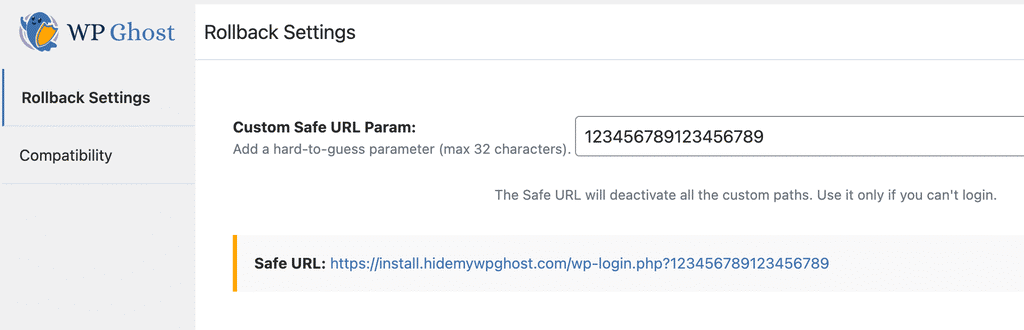
Every WP Ghost installation generates a unique Safe URL parameter. When you append this parameter to any page on your site, WP Ghost temporarily deactivates its security features for that single request. This lets you access the login page during conflicts, compare default vs custom paths, and troubleshoot which WP Ghost setting is causing an issue.
Example: https://yourdomain.com/?disable=NwznPAYbmUBxZtoE
The parameter name and value are both customizable. WP Ghost generates a random value on installation, but you should change it to something unique and unpredictable.
Go to WP Ghost > Advanced > Rollback Settings > Custom Safe URL Param and enter a custom value.
Pause WP Ghost for 5 Minutes
If you can access the WordPress dashboard but need to troubleshoot a conflict, go to Plugins in the WordPress dashboard, find WP Ghost, and click Pause 5 Minutes. WP Ghost disables all security features for 5 minutes, giving you time to test compatibility, adjust settings, or deactivate a conflicting plugin. After 5 minutes, WP Ghost reactivates automatically with all your current settings.
Prevent Broken Website Layout
This option automatically prevents frontend layout issues if server rewrite rules are not correctly loaded. When enabled, WP Ghost detects when the configuration file does not contain the expected rewrite rules and skips path changes to preserve the site layout.
Go to WP Ghost > Advanced > Rollback Settings and switch on Prevent Broken Website Layout.

This is a setup tool, not a permanent setting. Enable it while configuring path changes for the first time. Once you have confirmed your site works correctly with the new paths (by running a Frontend Test), switch it off. While enabled, WP Ghost’s path changes may not apply on the frontend.
If you experience slow loading after activating WP Ghost, see the Website Loads Slower troubleshooting guide.
Rollback to Default Settings
If you need to start over completely, use the Safe URL to access the admin panel, then navigate to WP Ghost > Change Paths and set the Level of Security to Default. Click Save. This removes all custom paths, disables all protection features, and returns WP Ghost to its initial state.
If you cannot access the dashboard at all, check the Emergency Disable guide for FTP-based recovery, or add a constant in wp-config.php to disable WP Ghost without dashboard access.
Compatibility
Server Type
WP Ghost automatically detects your server type (Apache, Nginx, LiteSpeed, IIS, and hosting-specific profiles like SiteGround, WP Engine, Flywheel, InMotion, Bitnami, GoDaddy, and CloudPanel). The server type determines which rewrite rules WP Ghost generates for your custom paths.
In most cases, auto-detection is accurate. If you experience 404 errors on custom paths after activating Safe Mode or Ghost Mode, the server type may be incorrect. You can override it manually.
Go to WP Ghost > Advanced > Compatibility > Server Type and select your server from the dropdown.
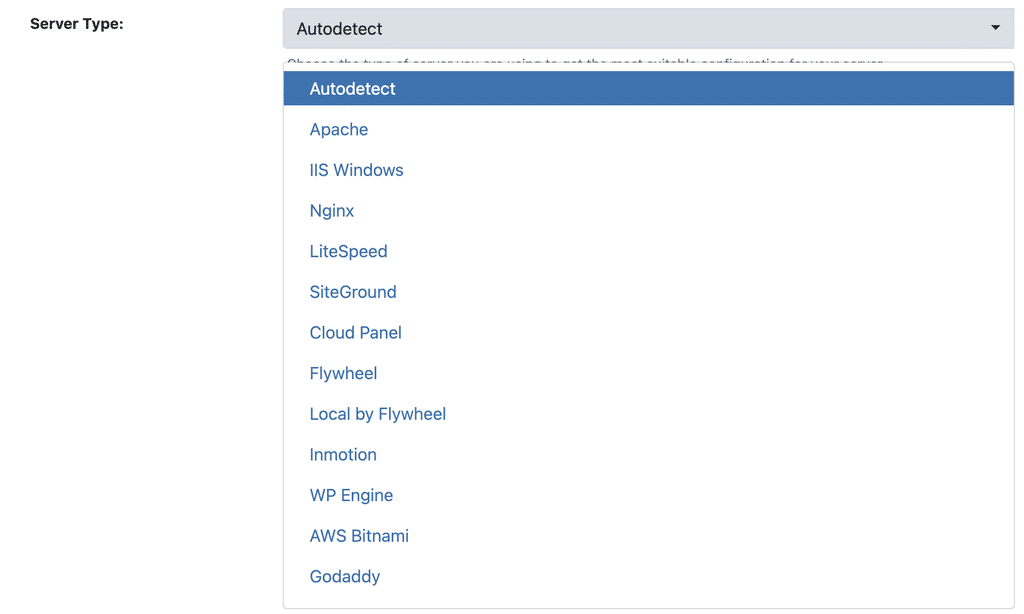
If you do not know your server type, check Tools > Site Health > Info > Server in WordPress, or ask your hosting provider. For common providers: SiteGround uses Nginx, WP Engine uses Nginx, Flywheel uses Nginx, GoDaddy uses Apache (shared) or Nginx (managed), Bluehost uses Apache, InMotion uses Apache, Cloudways varies by stack.
Plugin Loading Hook
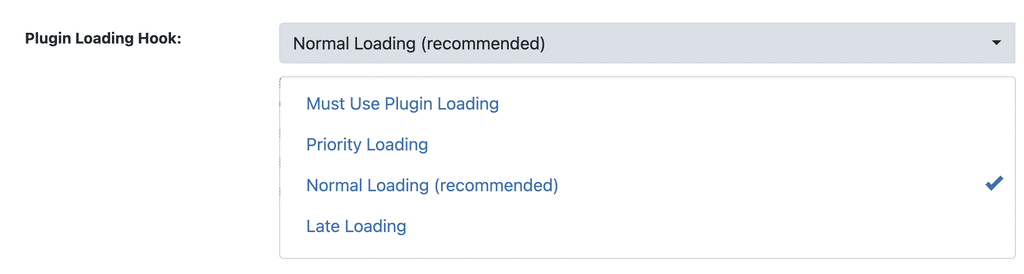
This option controls when WP Ghost initializes relative to other plugins. By default, WP Ghost loads when all other plugins are initialized. Some caching plugins process content in a way that prevents WP Ghost from changing paths correctly.
Four loading options are available:
Must Use Plugin Loading – loads WP Ghost before all other plugins. Required for ManageWP compatibility. Use this if caching plugins override WP Ghost’s path changes.
Priority Loading – loads WP Ghost early in the plugin initialization sequence.
Normal Loading (default) – loads WP Ghost in the standard WordPress plugin order.
Late Loading – loads WP Ghost after all other plugins have initialized. Useful when other plugins need to set up their hooks before WP Ghost modifies paths.
Go to WP Ghost > Advanced > Compatibility > Plugin Loading Hook and select the appropriate option.
WP Ghost works automatically with major caching plugins including WP-Rocket, Autoptimize, CDN Enabler, Breeze, Cache Enabler, Comet Cache, Hummingbird, Hyper Cache, LiteSpeed Cache, Powered Cache, W3 Total Cache, WP Super Cache, WP Fastest Cache, and SiteGround Optimizer. See the Compatibility Plugins List for the full list.
Rewrites in WordPress Rules Section
By default, WP Ghost writes its rewrite rules to the .htaccess file outside the WordPress rules area. Some plugins (especially security and caching plugins) remove custom rules from .htaccess that are outside the # BEGIN WordPress and # END WordPress comments.
If your custom paths stop working after another plugin updates or saves its settings, enable this option. WP Ghost will write its rules inside the WordPress rewrite rules area where they are protected from being removed.
Go to WP Ghost > Advanced > Compatibility > Add Rewrites in WordPress Rules Section and switch it on.

Clean Login Page
Some themes add hooks to the login page that redirect users to /wp-admin after login. If you changed the wp-admin path to a custom path in WP Ghost, the theme’s redirect points to a protected URL, and users end up on the home page instead of the dashboard.
When Clean Login Page is enabled, WP Ghost removes theme hooks from the login page and ensures the user is redirected to the correct custom admin path after login. It also replaces the WordPress logo on the login page with the site icon, if one is configured.
Go to WP Ghost > Advanced > Compatibility > Clean Login Page and switch it on.

To customize login redirects for each user role (instead of fixing theme conflicts), use the Login and Logout Redirects option in WP Ghost > Tweaks > Redirects. For full visual login page customization, see the Login Page Design feature in WP Ghost > Tweaks > Login Page Design.
Frequently Asked Questions
Is the Safe URL a security risk?
Only if someone knows the parameter. The default value is randomly generated and unique to your installation. Customize it to something long and unpredictable. The Safe URL bypasses WP Ghost’s protections for that single request only, not permanently.
What if I forget my custom login URL?
Append the Safe URL parameter to the default /wp-login.php URL to bypass WP Ghost and access the original login page. If that does not work, rename the plugin folder via FTP (/wp-content/plugins/hide-my-wp to something else) to disable path changes, then log in at the default /wp-login.php. See the Emergency Disable guide for full instructions.
Which Plugin Loading Hook should I use?
Start with Normal Loading (default). Switch to Must Use Plugin Loading only if a caching plugin overrides WP Ghost’s path changes, or if you use ManageWP. Switch to Late Loading if another plugin needs to initialize before WP Ghost.
Does the 5-minute pause reactivate automatically?
Yes. After 5 minutes, WP Ghost reactivates with all your current settings. Click Pause 5 Minutes again if you need more time.
Does WP Ghost modify WordPress core files?
No. All advanced settings operate through WP Ghost’s own configuration stored in the WordPress options table, server rewrite rules, and WordPress hooks. No core files are modified.
Related Tutorials
Server configuration and recovery:
Website Loads Slower Troubleshooting – fix performance issues after activating WP Ghost.
Emergency Disable Guide – FTP-based recovery when you cannot access the dashboard.
Setup WP Ghost on Nginx Server – Nginx-specific rewrite rule configuration.
Set AllowOverride All on Apache – required Apache setting for .htaccess rules.
Compatibility Plugins List – all plugins tested with WP Ghost.
Customize All WordPress Paths – the paths that these advanced settings support.
Activate Security Tweaks – login redirects, login page design, and other tweaks.