Set Up WordPress 2FA with Mobile Authenticator Apps – WP Ghost Guide
This tutorial has moved to the new WP Ghost Knowledge Base where each feature is presented in detail.
Connect WP Ghost’s (formerly Hide My WP Ghost) 2FA Code method to your preferred authenticator app: Google Authenticator, Authy, Microsoft Authenticator, or LastPass Authenticator. Scan a QR code, enter the 6-digit verification code, and your login is protected with two-factor authentication. Free feature.
After you enable the 2FA Code method in WP Ghost, each user needs to link their authenticator app by scanning a QR code. This guide walks through the setup process for four supported apps, step by step. WP Ghost uses the standard TOTP protocol, so any compatible authenticator app works.
Before You Start
Make sure the 2FA feature is enabled in WP Ghost. Go to WP Ghost > 2FA and confirm the 2FA Code method is active. Then navigate to your User Profile in the WordPress dashboard and click Add Two-Factor Authentication to see the QR code and text key you will need for the steps below.
For detailed instructions on enabling 2FA in WP Ghost, see the Two-Factor Authentication tutorial.
Set Up Your Authenticator App
Google Authenticator
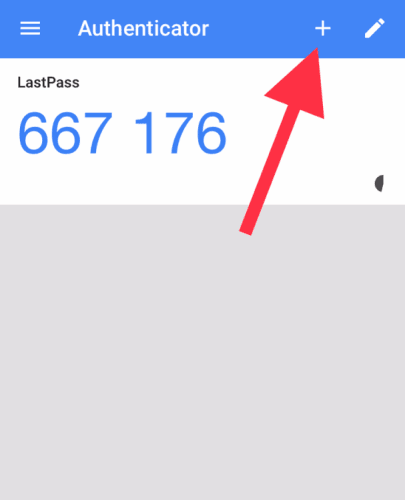
Download Google Authenticator (Android, iPhone, or Chrome extension). Open the app and tap the + icon (lower right corner). Select Scan a QR code and point your camera at the QR code shown in your WordPress profile. Or tap Enter a setup key and type the text key manually. Your WordPress site appears in the app with a rotating 6-digit code. Enter the code in the WP Ghost 2FA setup wizard and click Submit.
Authy
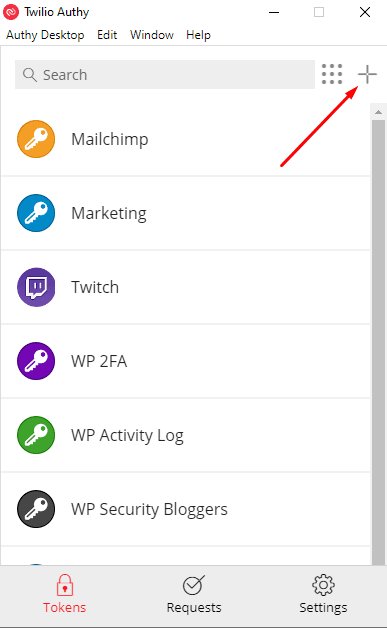
Download Authy (Android, iPhone, or desktop). Tap the menu icon and select Add Account. Scan the QR code from your WordPress profile, or enter the text key manually. Name the account (e.g., “My Site WP Ghost”) and choose an icon for easy identification. Save. The rotating 6-digit code appears. Enter the code in the WP Ghost 2FA setup wizard and click Submit.
Microsoft Authenticator
Download Microsoft Authenticator (Android, iPhone, or Windows). Tap Add Account on the home screen. Select Other account (or skip the account type selection). Scan the QR code from your WordPress profile, or enter the text key manually. The account appears in your list with a rotating code. Enter the code in the WP Ghost 2FA setup wizard and click Submit.
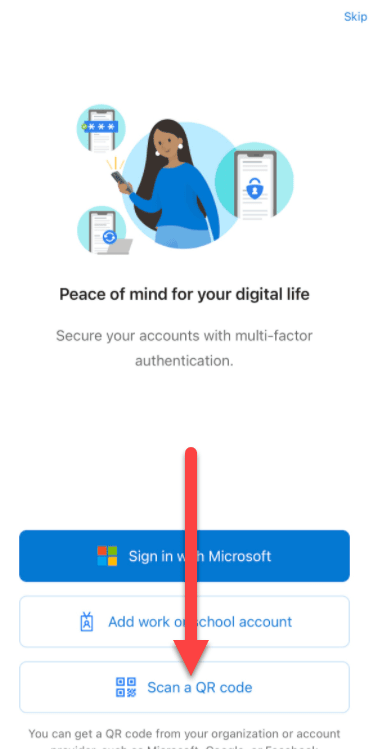
LastPass Authenticator
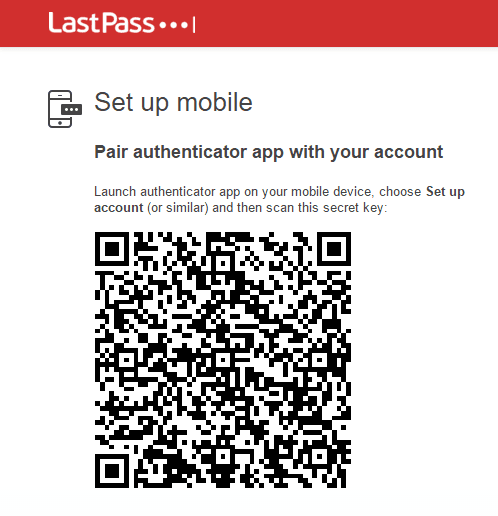
Download LastPass Authenticator (Android, iPhone, or desktop). Tap New Account on the home screen. Scan the QR code from your WordPress profile, or enter the text key manually. The verification code appears immediately. Enter the code in the WP Ghost 2FA setup wizard and click Submit.
Which App Should You Choose?
| App | Best for | Cloud backup |
|---|---|---|
| Google Authenticator | Simplest setup, most widely used | Limited (opt-in sync) |
| Authy | Multi-device sync, resilience against device loss | Yes (built-in) |
| Microsoft Authenticator | Users in the Microsoft ecosystem | Yes (cloud backup) |
| LastPass Authenticator | Users already using LastPass password manager | Via LastPass account |
WP Ghost uses the standard TOTP protocol. Any compatible authenticator app works, including 1Password, Bitwarden, and Keeper. The four listed above are officially tested.
Troubleshooting
The code from my app is rejected
TOTP codes are time-based. If the clock on your phone is out of sync with the server, codes will be rejected. Go to your phone’s date and time settings and enable Automatic date and time (or “Set time automatically”). In Google Authenticator, go to Settings > Time correction for codes > Sync now. Try entering the code again immediately after it refreshes.
I lost my phone and cannot generate codes
Use one of the backup codes you saved during setup. Each backup code works once. If you have no backup codes, a site administrator can reset your 2FA from the WordPress Users panel. If you are the only administrator, use the Safe URL parameter or the Emergency Disable guide to regain access.
QR code will not scan
Make sure your camera has permission to access the authenticator app. Try increasing screen brightness. If the QR code still will not scan, use the manual text key option instead. Copy the text key shown below the QR code in your WordPress profile and enter it manually in your authenticator app.
Frequently Asked Questions
Can I use any TOTP authenticator app?
Yes. WP Ghost uses the standard TOTP protocol. Any compatible app works, including 1Password, Bitwarden, and Keeper. The four apps listed in this tutorial are officially tested, but any TOTP app generates valid codes.
Can I use one app for multiple WordPress sites?
Yes. Each site gets its own entry in the app. Add as many sites as you want. Each generates independent rotating codes.
Can I switch authenticator apps later?
Yes. Use the Reset Key option in your WordPress profile. This generates a new QR code for the new app. Old app codes stop working immediately.
Is 2FA a free feature in WP Ghost?
Yes. Two-Factor Authentication by Code, Email, and Passkey is included in all versions of WP Ghost, including the free version.
Does WP Ghost modify WordPress core files?
No. 2FA is handled through WordPress hooks. Disabling removes the requirement instantly.
Related Tutorials
Two-Factor Authentication – enable and configure 2FA by Code, Email, or Passkey in WP Ghost.
Passkey 2FA – passwordless login with Face ID, Touch ID, or Windows Hello.
Magic Link Login – passwordless login via email link.
Brute Force Attack Protection – add reCAPTCHA and login attempt limits.
Change and Hide the Login Path – hide the login URL from bots.