WP Ghost Magic Link Login – Passwordless WordPress Authentication
This tutorial has moved to the new WP Ghost Knowledge Base where each feature is presented in detail.
Enable passwordless login for WordPress and WooCommerce with WP Ghost’s (formerly Hide My WP Ghost) Magic Link Login. Users enter their email, receive a one-time link, click it, and they are logged in. No passwords needed.
Passwords are the weakest link in most authentication systems. Brute force attacks, credential stuffing, and password reuse all require a password to target. LLAR’s 2025 report found that brute force attacks surged 130% in 2024. Magic Link Login removes the password from the equation entirely. There is nothing to guess, nothing to stuff, nothing to reuse.
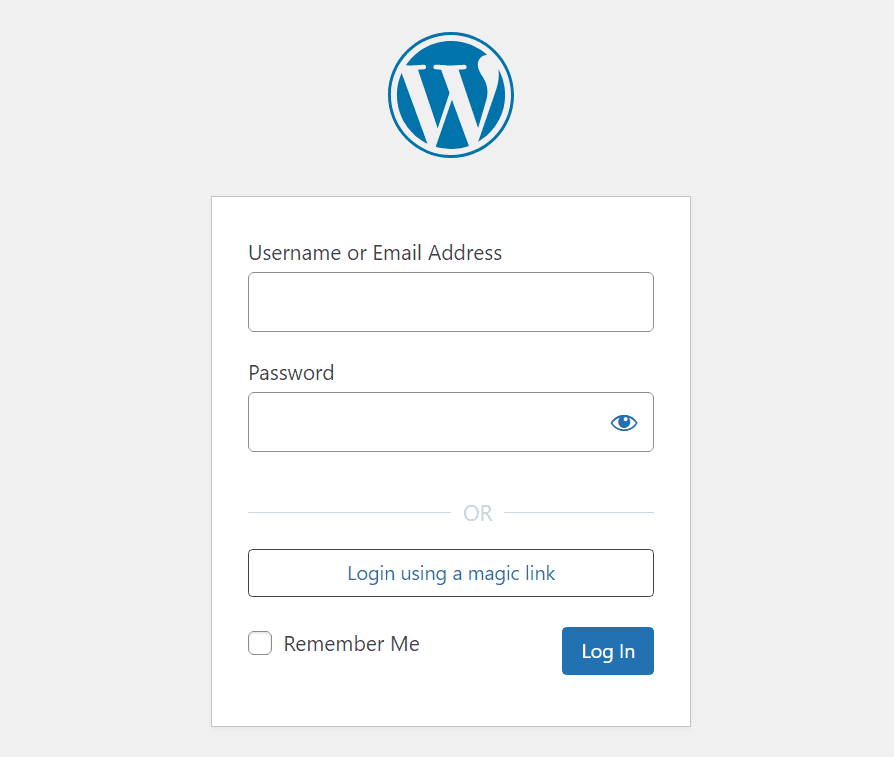
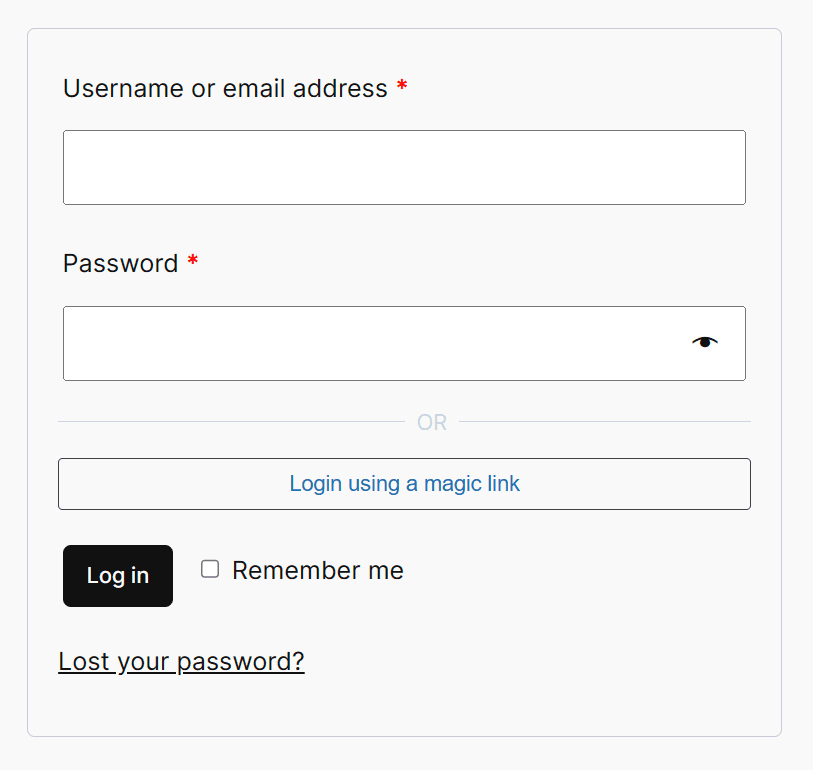
WP Ghost’s Magic Link Login adds a passwordless option to your WordPress and WooCommerce login pages. Users enter their registered email address, receive a unique one-time link, click it, and they are authenticated. The link expires after a configurable time period and is destroyed after use. The standard password form remains visible alongside the magic link button, so users can choose either method.
What Is Magic Link Login?
Magic Link Login is a passwordless authentication method. Instead of entering a username and password, users provide their registered email address. WP Ghost generates a unique, time-limited URL and sends it to that email. Clicking the link authenticates the user and grants dashboard access. The link is single-use, so once clicked or expired, it cannot be used again.
| Password login | Magic Link Login |
|---|---|
| Users must remember complex passwords | No password needed, just an email address |
| Passwords can be stolen, guessed, or reused | Link is unique, single-use, and time-limited |
| Password resets generate support requests | No passwords means no reset requests |
| Brute force attacks target the password | Nothing to brute force |
How to Enable Magic Link Login
Activate and Configure
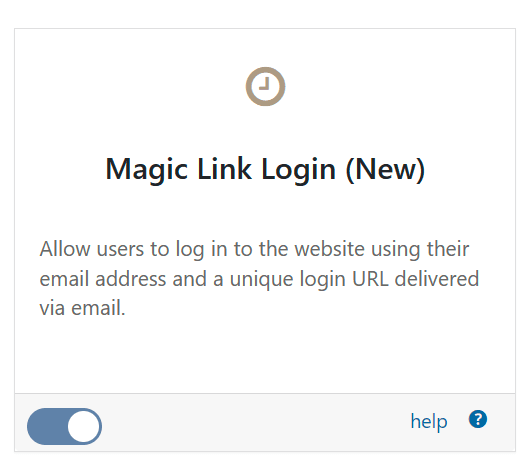
Activate the feature from WP Ghost > Overview > Features. Switch on Magic Link Login.
Then go to WP Ghost > Change Paths > Login Security and scroll to the Magic Login section. Set the Magic Login button text (what users see on the login form) and choose the Link Expiration period (how long the link remains valid, default: 1 hour). Click Save.
How the Login Flow Works
Once enabled, here is what users see and do:
Step 1: The user visits the login page and clicks “Login using a magic link”.
Step 2: The user enters their registered email address and clicks send.
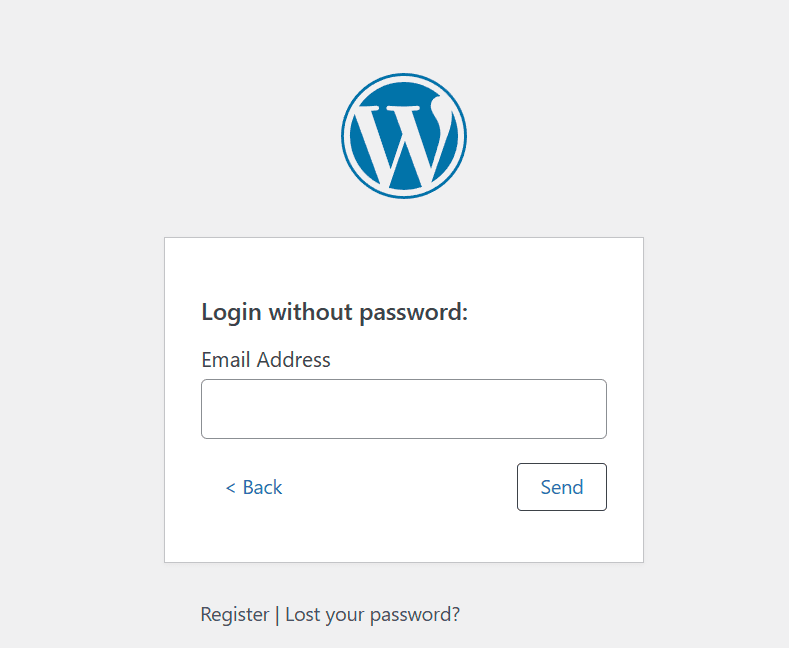
Step 3: WP Ghost generates a unique, time-limited link and sends it to the user’s email.
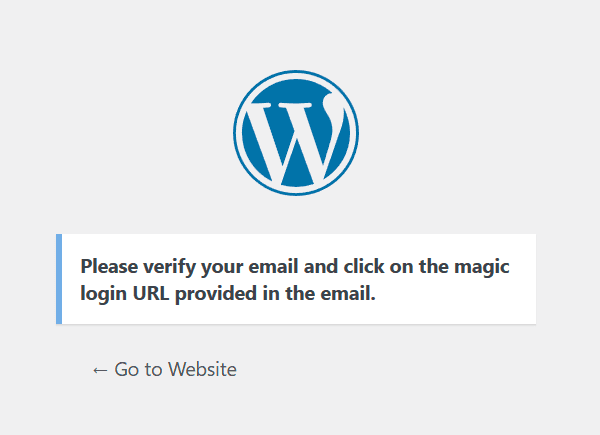
Step 4: The user clicks the link in their email and is logged in automatically. No password input required.
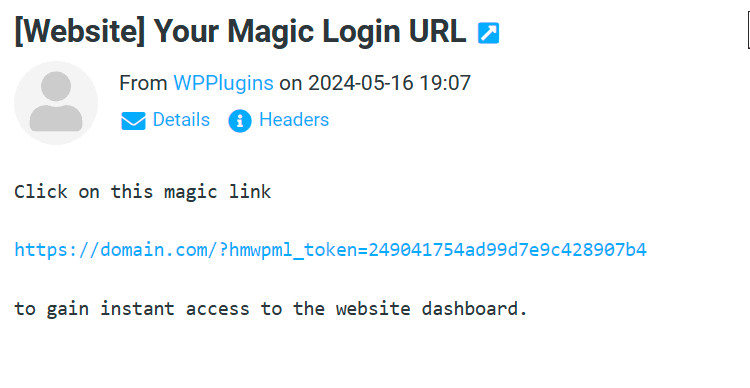
The link is destroyed after use. If unused, it expires after the configured time period.
Send Magic Links from the Users List
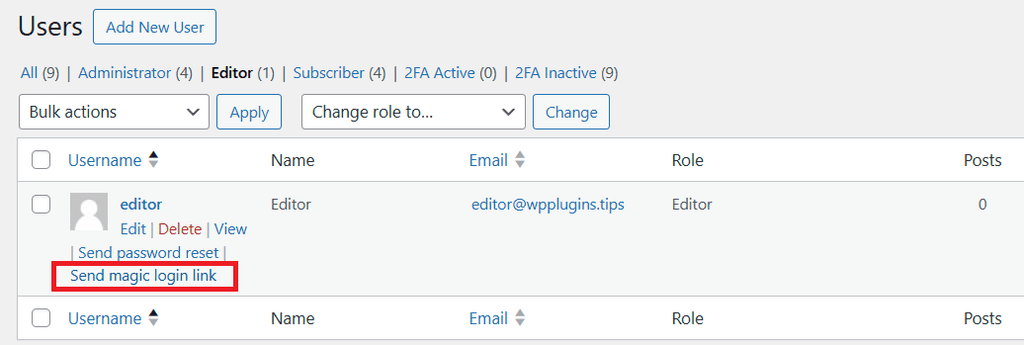
Administrators can send magic login links to any user directly from Users > All Users. Click “Send magic login link” in the user’s row actions. WP Ghost sends a one-time login link to the user’s email. The link is valid for 1 hour by default.
WooCommerce Magic Link
Magic Link Login works with the WooCommerce login page. WooCommerce customers can log in without passwords, which reduces support requests and cart abandonment from forgotten passwords.
To activate it, go to WP Ghost > Overview > Features and switch on WooCommerce Magic Link.
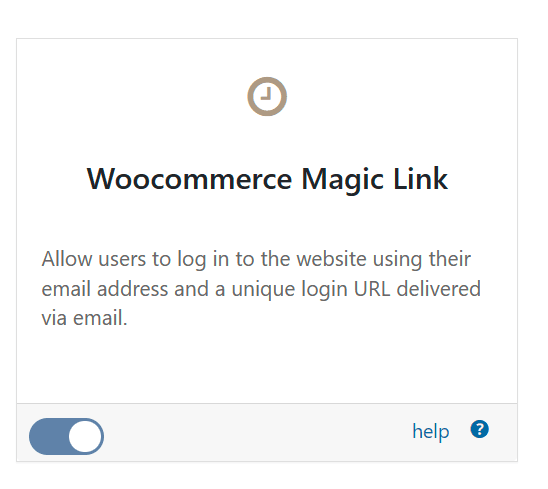
Once activated, the magic link button appears on the WooCommerce login page alongside the standard password form.
Customization
You can customize the magic link email subject and message by adding filter hooks in your theme’s functions.php file. This lets you brand the email to match your site’s tone and design.
To customize the email subject:
add_filter('hmwp_unique_login_subject', function($subject){
  return "Your Magic Login URL";
}, 1);
To customize the email message:
add_filter('hmwp_unique_login_message', function($message, $url){
  return sprintf("Click on this magic link %s to log in to your account.", PHP_EOL . PHP_EOL . $url . PHP_EOL . PHP_EOL);
}, 2);
Troubleshooting
“The Server Was Unable to Send the Email”
This error appears when your WordPress site does not have a working email system. Install and configure an SMTP plugin like WP Mail SMTP, FluentSMTP, or Post SMTP. Verify that your SMTP configuration can send test emails, then try the magic link again.

Magic Link Email Goes to Spam
If magic link emails land in spam or junk folders, your SMTP configuration needs attention. Make sure your sending domain has proper SPF, DKIM, and DMARC records set up. Most SMTP plugins include guides for configuring these DNS records. Using a transactional email service like Mailgun, SendGrid, or Amazon SES improves deliverability significantly.
Frequently Asked Questions
Can users still log in with a password?
Yes. Magic Link Login adds an alternative method. It does not remove the password form. Users can choose either method. The standard password form remains visible alongside the magic link button.
How secure is a magic link?
Magic links are single-use tokens with a configurable expiration (default: 1 hour). They are destroyed after the first click and expire if unused. Security depends on the user’s email account. Anyone with access to that email can use the link. This is the same trust model as password reset emails. For the highest security, combine Magic Link Login with 2FA.
What is the difference between Magic Link Login and Temporary Logins?
Temporary Logins are admin-generated URLs for specific people (developers, clients) with custom roles and expiration. Magic Link Login is a self-service feature. Any registered user can request their own login link from the login page. Temporary Logins are for controlled, admin-initiated access. Magic Link Login is for everyday user authentication.
Does this work with WooCommerce?
Yes. Enable the WooCommerce Magic Link toggle in WP Ghost > Overview > Features to add the magic link button to the WooCommerce login page. WooCommerce customers can log in without passwords, reducing support requests and cart abandonment from forgotten passwords.
Does WP Ghost modify WordPress core files?
No. Magic Link Login adds a button to the login form through WordPress hooks and handles authentication through WP Ghost’s processing. No core files are modified. Disabling the feature removes the button and link generation instantly.
Related Tutorials
Build your complete login security system:
Temporary Logins – create admin-generated passwordless URLs with custom roles and expiration.
Two-Factor Authentication – add a second verification step with code, email, or passkeys.
Brute Force Attack Protection – protect login forms with reCAPTCHA and attempt limits.
Change and Hide the Login Path – move your login page to a custom URL.
Activate Security Tweaks – login page design and redirect configuration.
Website Security Check – run a complete security audit.