
Change and Hide the WordPress Themes Path with WP Ghost
This tutorial has moved to the new WP Ghost Knowledge Base where each feature is presented in detail.
Change and hide the WordPress themes path with WP Ghost to remove /wp-content/themes/ from your source code. Theme detectors identify your CMS by scanning this directory. WP Ghost renames the path, hides individual theme names, and blocks access to old theme paths.
How to Change the Themes Path
Go to WP Ghost > Change Paths > Theme Security. Find the Custom Themes Path field. Enter a custom name or keep the predefined one. Click Save.
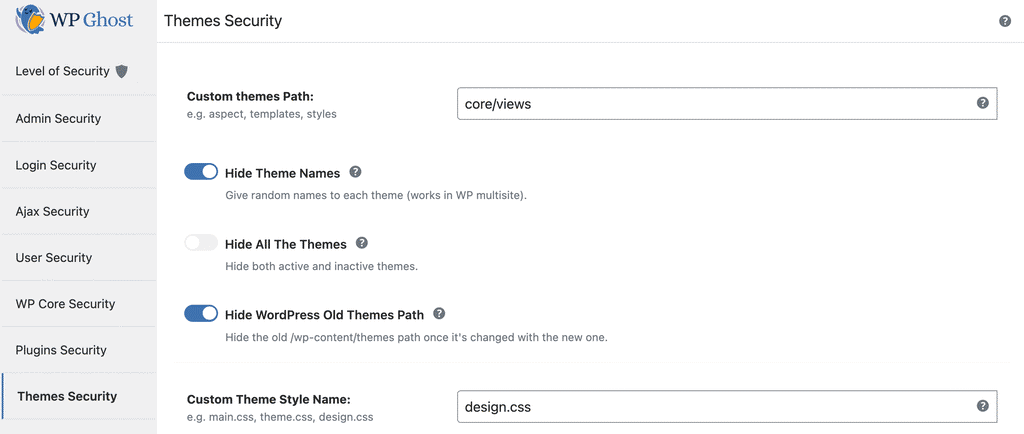
WP Ghost also lets you rename individual theme names. In the Advanced Options panel, you can assign custom names to your active theme and any parent themes.
Hide the Old Themes Path
Go to WP Ghost > Change Paths > Themes Security. Enable Hide WordPress Old Themes Path to block access to the old /wp-content/themes/ path. Anyone accessing the old path gets a 404 error.

Frequently Asked Questions
Will changing the themes path break my site’s design?
No. Your theme’s CSS, JavaScript, images, and templates all continue loading normally. WP Ghost uses rewrite rules that serve files from the original location through the new URL.
Does this work with child themes?
Yes. WP Ghost detects and hides both parent and child theme names.
Does this work with WooCommerce?
Yes. WooCommerce templates that load from your theme directory use the new path automatically.
Does WP Ghost modify WordPress core files?
No. All path changes use URL rewrite rules. Deactivating restores defaults instantly.